Adding a Model to Ollama
Open https://ollama.com/search to check the models supported by ollama, and select a model you'd like to pull. For example, I want to pull the deepseek-r1:70b model.
Pulling a Model via Open-WebUI
Install the Open WebUI application; click to jump
Click the model name in the upper-left corner of
Open-WebUI. This will open a dropdown menu allowing you to switch models.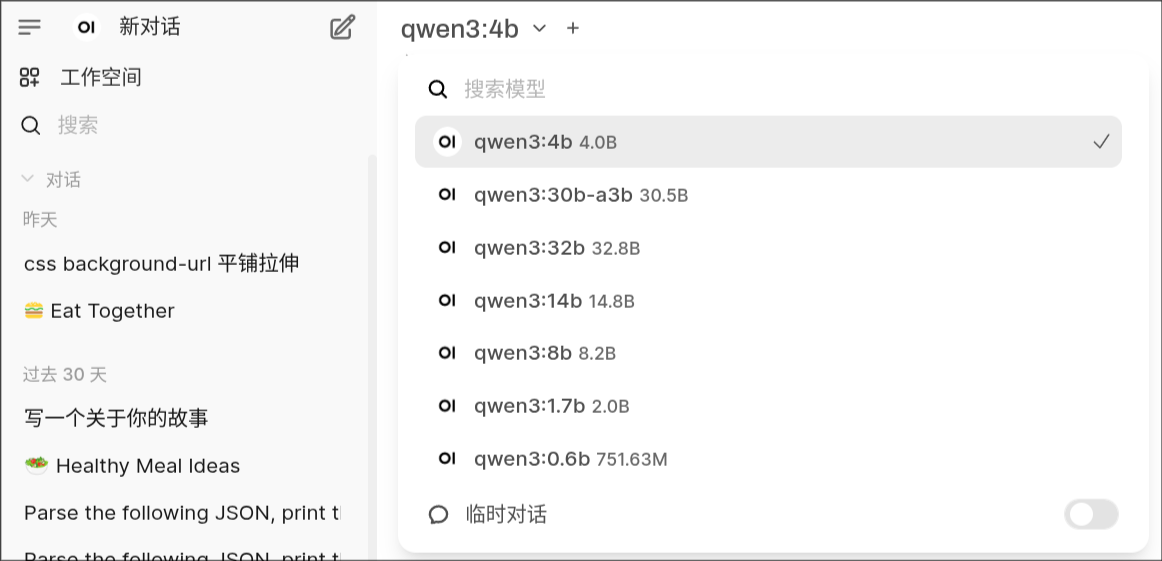
When the dropdown list does not contain the model you need, manually enter a
deepseek-r1:70bin the search box. The interface will then prompt: "Pulling deepseek-r1:70b from Ollama.com"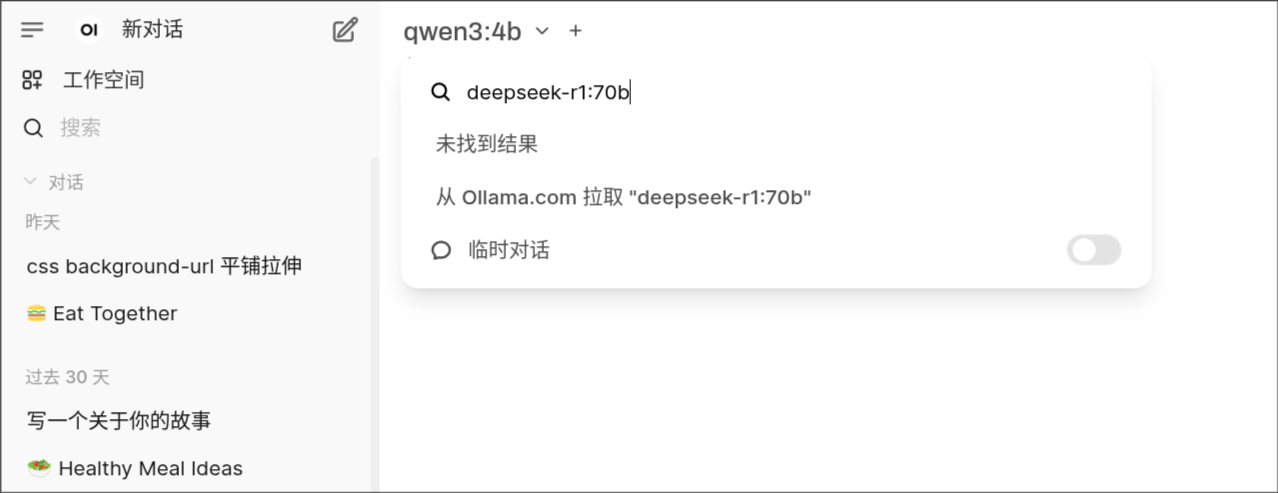
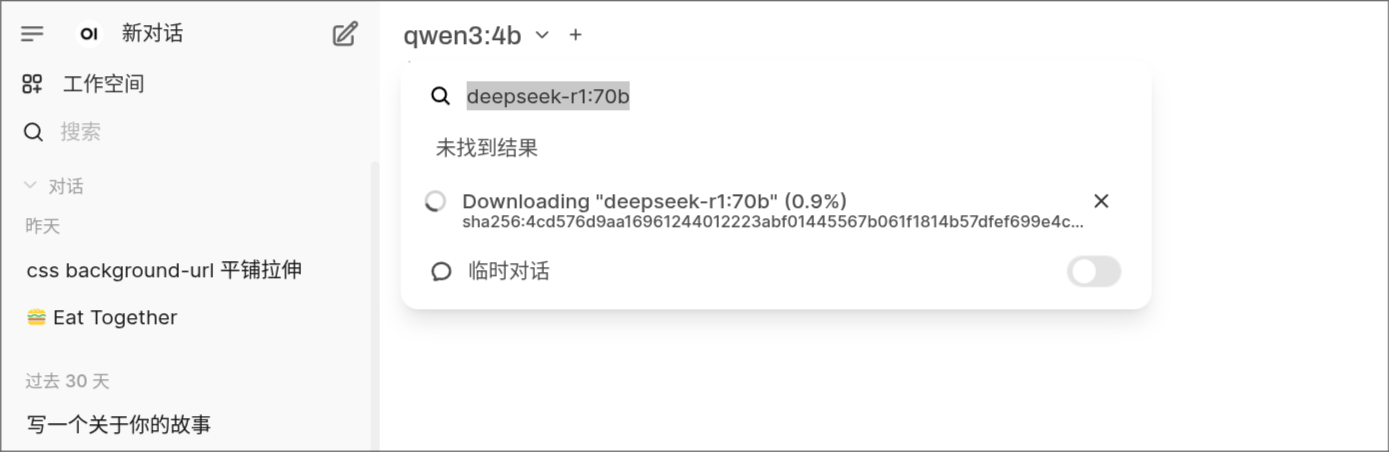
Click "Pulling deepseek-r1:70b from Ollama.com", which will initiate the background model download. The interface will also display the progress.
Pulling a Model via Ollama Command Line
- First, you need to log into the AI Pod system via SSH or directly through the display screen.
- Execute
docker exec -ti cloudlazycataipodwebollama-ollama-1 bashto enter the containerollama - Execute
ollama pull deepseek-r1:70baccordingly
Pulling models with webollama
Install the
webollamaapplication, click to jumpAfter opening, you will see the following interface. Follow the prompts to pull the model.
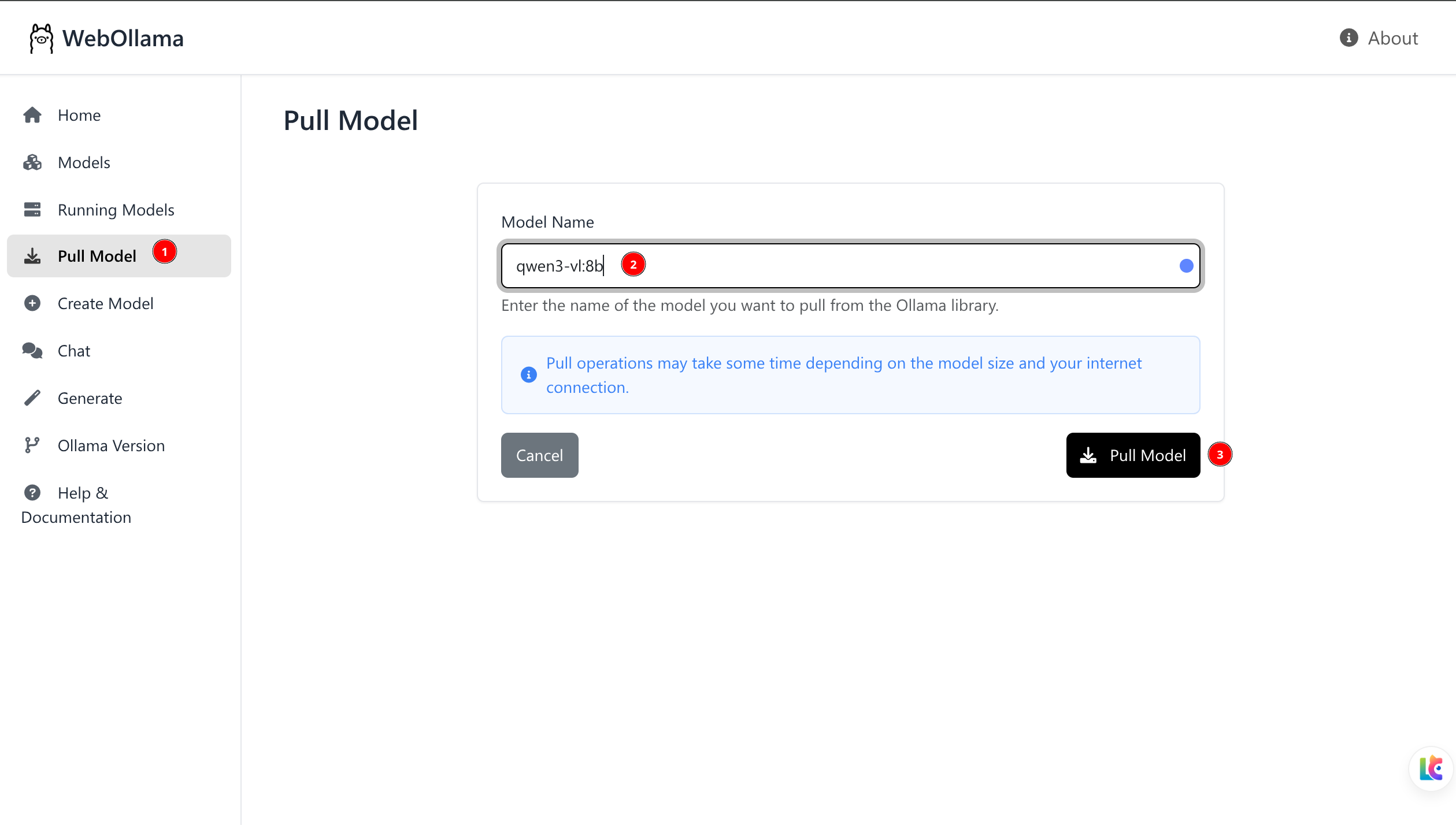
When using webollama to pull the model, no progress is shown. Please wait patiently (it is recommended to use the above two methods to pull the model, as they allow you to monitor the progress).